

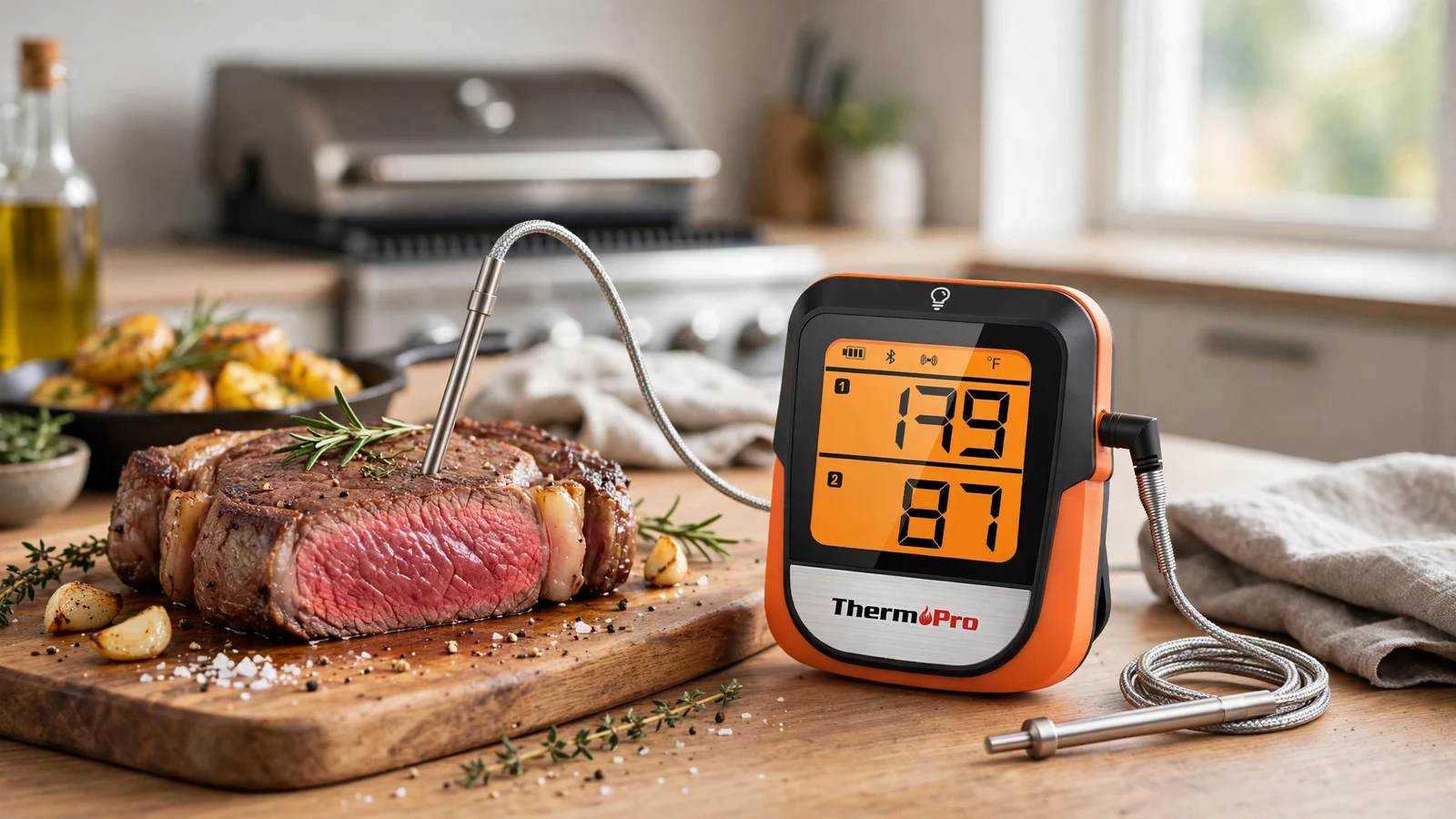
Getting the exact internal temperature of a thick cut of meat without constantly opening the oven door is much easier once you master using a ThermoPro Bluetooth meat thermometer. Whether you’re smoking a brisket overnight or roasting a holiday turkey, having real-time data sent straight to your smartphone takes the guesswork out of cooking.
Understanding how to use thermopro bluetooth meat thermometer equipment properly ensures your food reaches safe and delicious temperatures every single time. Here is everything you need to know about setting up your device, pairing it with your phone, and getting accurate readings.
Unboxing and Initial Hardware Setup
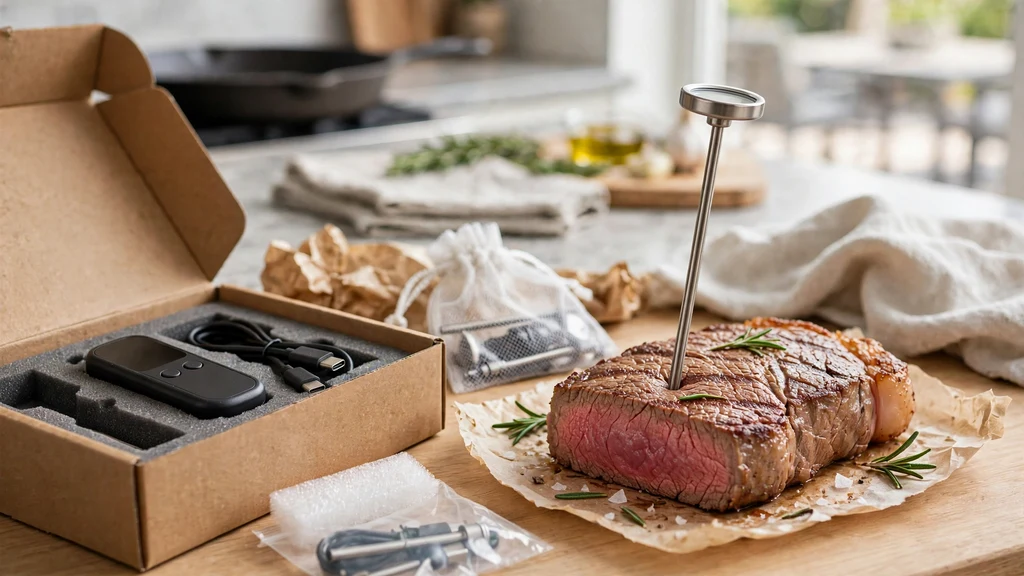
Getting started with your device begins with a careful physical inspection of the hardware components. Open the box and verify that you have the main transmitter unit, the stainless steel probes, and any included charging cables or batteries. Most models run on AAA batteries or built-in rechargeable lithium-ion batteries that require an initial power boost before your first cooking session.
Check the battery compartment to ensure the contacts are clean and insert fresh power cells if your unit isn’t rechargeable. Plug the stainless steel probes firmly into the designated ports on the transmitter base.
You should feel a slight click as the audio jack seats completely into the socket. A loose probe connection is the most common reason temperature readings fail to register on the digital display.
Installing the Companion Smartphone Application
Your device relies heavily on a dedicated mobile application to transmit data over short-range radio frequencies. Head to the Apple App Store if you use an iPhone or the Google Play Store if you run Android, then search for the official ThermoPro cooking app. Download and install the software onto your mobile device, making sure to grant the necessary permissions when prompted.
The software requires specific permissions to function correctly during your cooking sessions. Enable Bluetooth access so the application can discover nearby hardware transmitters.
Allow location services if the operating system requests them, as many modern mobile platforms bundle Bluetooth scanning with location permissions. Turn on push notifications so your phone can alert you when your meal hits its target temperature.
Pairing Your Thermometer via Bluetooth
Establishing a stable wireless connection between your transmitter and your phone is a straightforward process once you follow the correct sequence. Turn on your ThermoPro base unit by pressing the power button until the LCD screen lights up and displays current ambient and probe temperatures. Open the mobile app on your smartphone and look for a pairing or device setup button.
Press the sync button on your hardware transmitter if your specific model requires a manual handshake. Within a few seconds, the app should detect the device and display its serial number or model name on your screen.
Tap to connect, and watch for a confirmation icon to appear on both the app dashboard and the physical transmitter screen. If the connection drops, move closer to the kitchen or smoker to rule out interference from household electronics.
Proper Probe Placement Techniques
Inserting your probes into the correct part of the meat dictates whether your temperature readings are accurate or completely misleading. Slide the stainless steel tip directly into the thickest part of the cut, making sure to avoid large pockets of fat, gristle, or bone. Fat and bone conduct heat differently than muscle tissue, which leads to false high readings that can leave your dinner undercooked.
Push the probe past the halfway mark so the very center of the sensor rests squarely in the core of the food. If you are roasting a whole chicken or turkey, aim for the thickest part of the breast or the deep joint between the thigh and body.
When smoking a large brisket or pork shoulder, target the center of the flat muscle. Always use a USDA safe food temperature chart to verify the final doneness threshold for each specific protein type.
Navigating App Settings and Temperature Alarms
The mobile app gives you complete control over your cooking parameters through custom alarm profiles and preset temperatures. Select your meat type from the built-in library, which includes beef, pork, poultry, and fish, along with various cuts and doneness levels. You can also input custom target temperatures if you prefer your steaks pulled off the heat at an exact degree.
Set up ambient temperature ranges if you are using your device inside a smoker or oven to monitor the cooking environment itself. This feature alerts you if your grill‘s fire dies down or if the oven runs too hot, preventing culinary disasters before they happen. Test the alarm volume on your phone to ensure you can hear the alert even if you walk into another room or step outside.
| Meat Type | Recommended Target Temp | Probe Placement Tip |
|---|---|---|
| Beef Steak (Medium Rare) | 130°F – 135°F | Center of the thickest muscle |
| Whole Chicken / Turkey | 165°F | Deep in the thigh, avoiding bone |
| Pork Loin | 145°F | Center of the roast |
| Beef Brisket (Smoked) | 203°F | Center of the flat portion |
Cleaning and Maintaining Your Equipment
Proper maintenance extends the lifespan of your electronic cooking gear and ensures safe food handling practices for future meals. Allow the stainless steel probes to cool down completely before attempting to clean them, as handling hot metal causes severe burns. Never submerge the entire probe in water or run the audio jack plug under a faucet, as moisture entering the cable ruins the internal wiring.
Wipe down the metal shafts using a warm, soapy cloth or a specialized food-safe degreaser to remove grease and burnt residue. Use a damp cloth to clean the plastic transmitter base, keeping liquids away from the battery compartment and charging ports. Store your probes loosely wrapped or in a dedicated storage case to prevent the delicate wires from kinking, fraying, or breaking over time.
Troubleshooting Common Connection and Reading Errors
Wireless kitchen gadgets occasionally encounter signal drops or erratic readings due to environmental interference or low power. If your phone loses connection to the transmitter, check the battery level on both devices first, as weak batteries severely limit Bluetooth signal range. Thick metal smoker walls and heavy oven doors also block wireless signals, so placing the transmitter right next to the cooking vessel often solves the issue.
Erratic temperature jumps usually indicate that moisture has leaked into the probe cable during high-heat cooking or washing. Disconnect the probe, dry the plug thoroughly with a paper towel, and plug it back in to reset the connection. If a probe reads a wildly inaccurate temperature at room temperature, the internal sensor is likely damaged and needs replacement.
- Keep the transmitter base away from direct, open flames to prevent melting the plastic casing.
- Avoid wrapping the probe wires tightly around the metal shafts when storing your equipment.
- Calibrate your probes in an ice water bath if you suspect your readings are drifting over time.
- Never expose the plastic components of your probes to direct broiler heat inside an oven.
Frequently Asked Questions
Can I leave my ThermoPro Bluetooth thermometer in the oven or smoker the whole time?
Yes, the stainless steel probes and high-heat cables are designed to withstand oven and smoker temperatures for extended cooking times. However, keep the plastic base unit away from direct heat sources and open flames.
Why is my ThermoPro not connecting to my phone via Bluetooth?
Connection issues usually stem from disabled location services, turned-off Bluetooth permissions, or low battery power in the transmitter base. Restart both your phone and the transmitter, then try pairing again nearby.
How do I know if my probe is broken or giving false readings?
Test your probes by submerging the metal tips into a glass filled with a 50-50 mix of crushed ice and water. A properly functioning probe should read very close to 32 degrees Fahrenheit within a minute.
Can I set custom temperature alerts for my specific recipes?
The companion smartphone application features custom target temperature inputs alongside built-in USDA presets. Simply type in your preferred degree threshold to trigger an alert when your meal finishes cooking.
Conclusion
Mastering the use of your new wireless cooking tool transforms how you approach everyday meals and weekend barbecues alike. Taking a few extra moments to position your probes correctly and pair your device ensures reliable data from start to finish. Enjoy the freedom of monitoring your food from afar while serving up perfectly cooked meals every single time.